 Formbench
Section settings: skipping, printing and showing
Let techs skip a section, start sections on a new page, and show a section only when something fails.
Pick a section in the Form tab and its settings appear on the right, under Section behaviour.
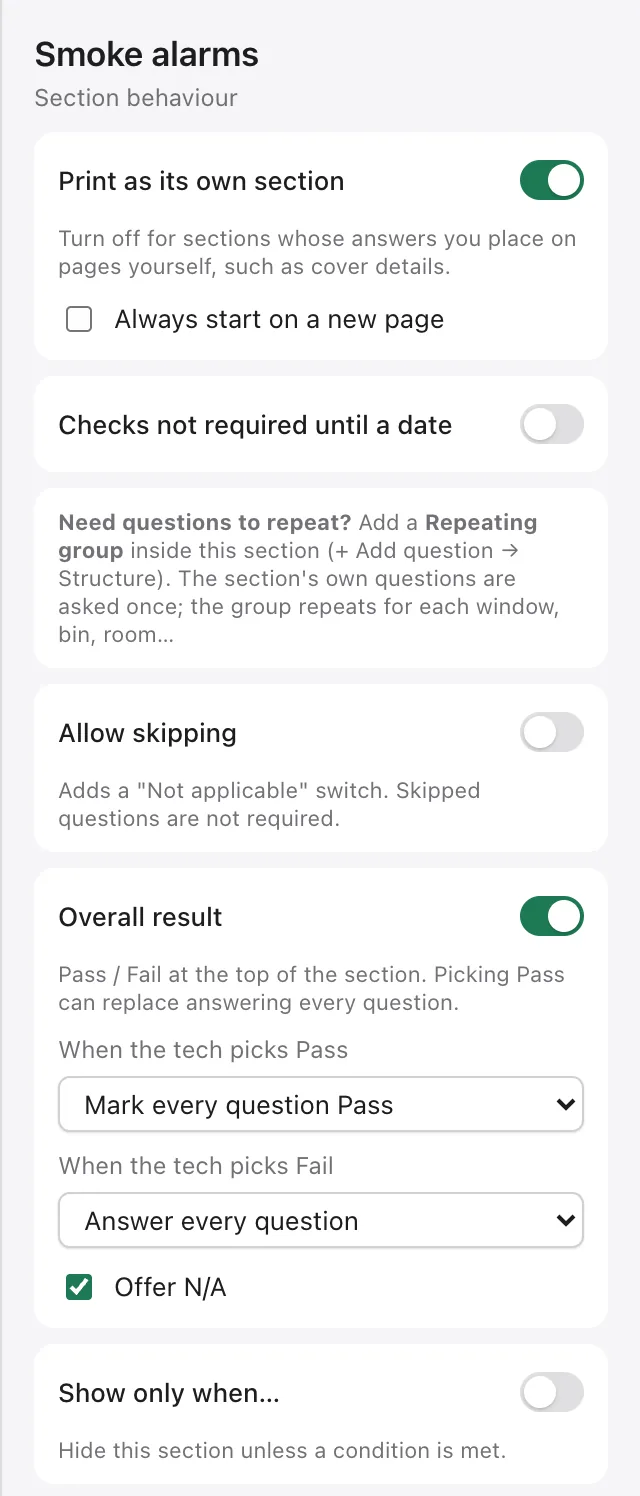
| Setting | What it does |
|---|---|
| Print as its own section | Prints the section in the report. Turn off for sections whose answers you place yourself, such as cover details. Always start on a new page forces a page break. |
| Checks not required until a date | Sets a start date for every check in the section. |
| Allow skipping | Adds a Not applicable, skip this section switch on the phone. Ask for a reason makes the tech say why. In the PDF either shows "Not applicable" or leaves the section out. |
| Overall result | Pass / Fail / N/A at the top of the section. See Pass, fail, N/A and defect numbers. |
| Show only when… | Hides the section until Any item in the form has failed. Good for a follow-up or quote section. |
On the phone, a hidden section shows This section is hidden until an item fails. In the Sections list it shows Hidden until an item fails.
More in Building forms
A tour of the form builderThe five tabs of the builder, the forms menu, versions, undo and how your work is saved.Adding sections and questionsBuild the form a section at a time, add questions from the palette, and reorder everything by dragging.Question settings: required, help text and datesMake questions required, add help for the tech, hide them from the report, and phase in new checks from a date.Repeating groups: rooms, doors and alarmsAsk the same questions for every room, door or smoke alarm, and let the tech add as many as the job needs.