 Formbench
Repeating groups: rooms, doors and alarms
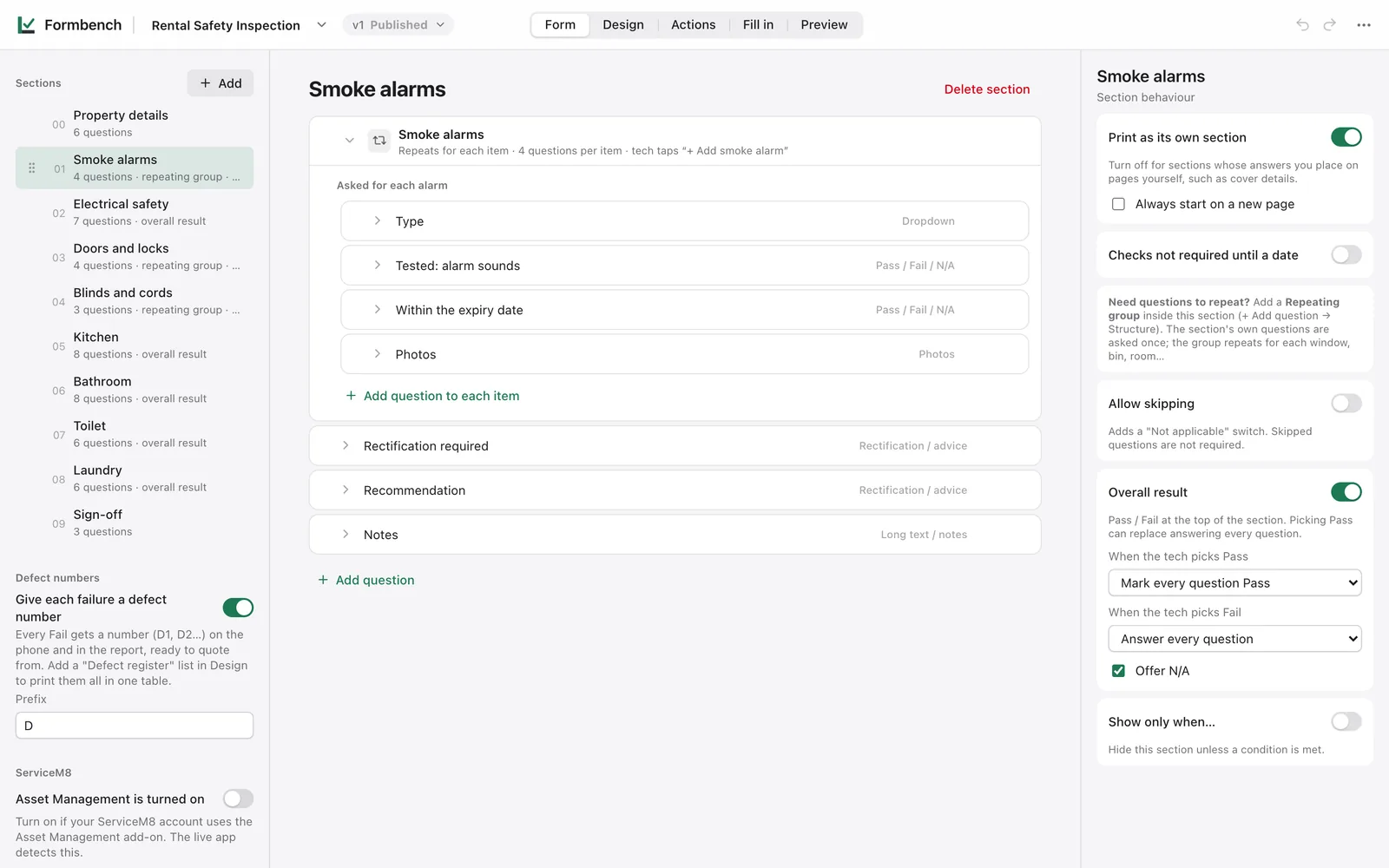
Ask the same questions for every room, door or smoke alarm, and let the tech add as many as the job needs.
A repeating group is a set of questions the tech fills in once per item. Each item gets its own name, answers, photos and result, so you don't have to build Room 1, Room 2, Room 3 by hand.
Add a repeating group
- Open the section in the Form tab.
- Click + Add question and choose Repeating group under Structure.
- Give the group a label, for example Smoke alarms.
- Click + Add question to each item to add the questions asked for every item.
- Open the group's settings (the sliders icon) to set how items are named and added.
Group settings
| Setting | What it does |
|---|---|
| Name for each item | How items are labelled. {n} is the item number, for example Alarm {n}. |
| Add button | The button text on the phone, for example Add smoke alarm. |
| Minimum items (required) | The tech must add at least this many. |
| Maximum items (optional) | Stops the tech adding more than this. |
| Ask the tech to name each item | Adds a name box to each item, for example Hallway. |
| Example shown in the box | Placeholder text in the name box. |
| Start with these items | Items already in place when the form opens, one per line. |
On the phone
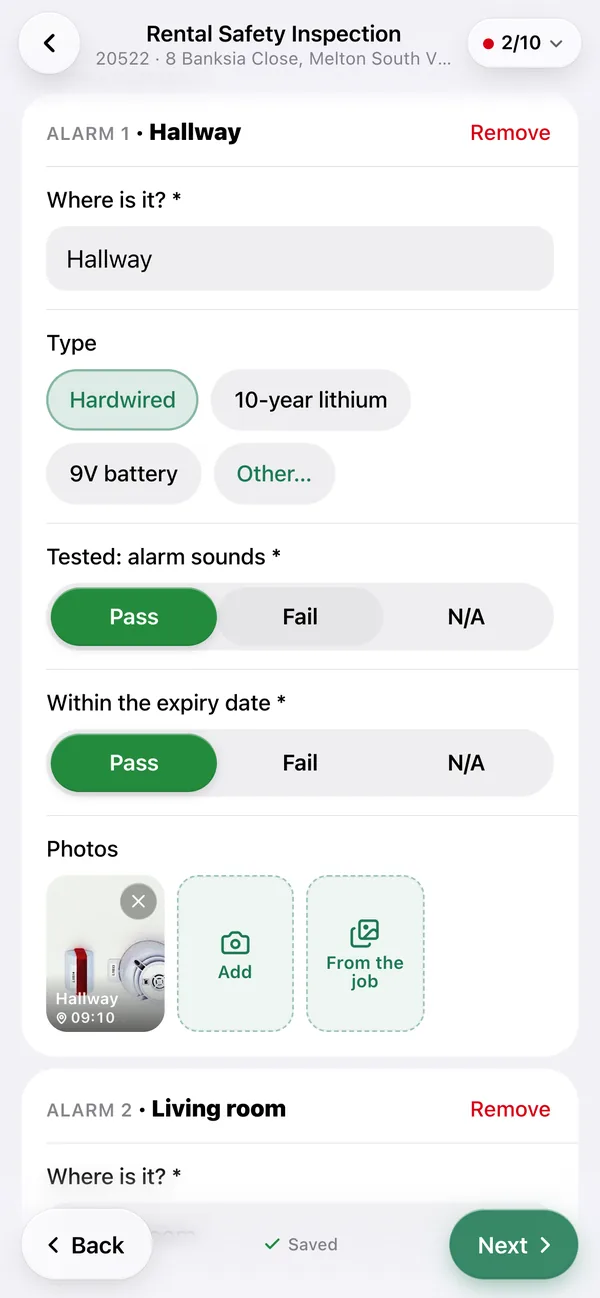
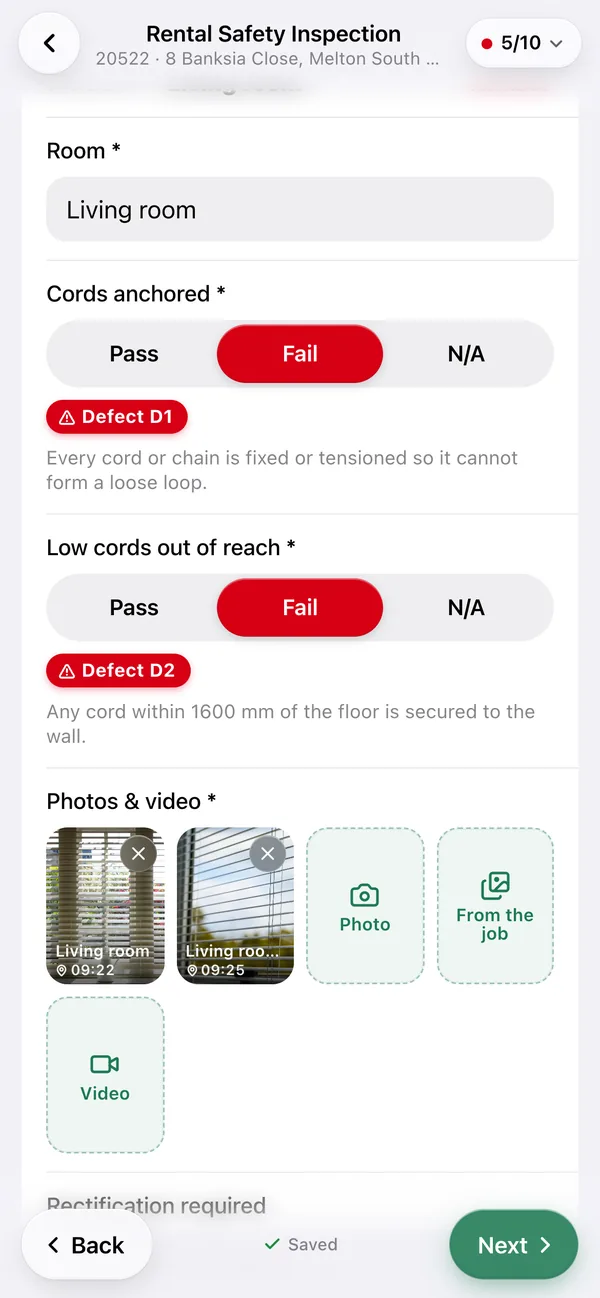
Each item appears as a card with its own questions and a Remove link. The add button sits under the last item. If there's a minimum, the phone says how many more are needed.
On the report
Items print as cards, lines, bands or plain rows, with their photos inside each item or gathered at the end. You set this in the Design tab (see Report blocks).
More in Building forms
A tour of the form builderThe five tabs of the builder, the forms menu, versions, undo and how your work is saved.Adding sections and questionsBuild the form a section at a time, add questions from the palette, and reorder everything by dragging.Question settings: required, help text and datesMake questions required, add help for the tech, hide them from the report, and phase in new checks from a date.Pass, fail, N/A and defect numbersHow checks, section results, the overall result and automatic defect numbers work.