 Formbench
Pass, fail, N/A and defect numbers
How checks, section results, the overall result and automatic defect numbers work.
On this page
Pass / Fail / N/A questions
Add a Pass / Fail / N/A question for each check. On the phone the tech taps Pass, Fail or N/A. A Measurement + limits question fails by itself when the reading is outside the minimum or maximum.
Defect numbers
- In the Form tab, find Defect numbers under the Sections list.
- Turn on Give each failure a defect number.
- Change the Prefix if you like. The default is D, so defects are D1, D2, D3.
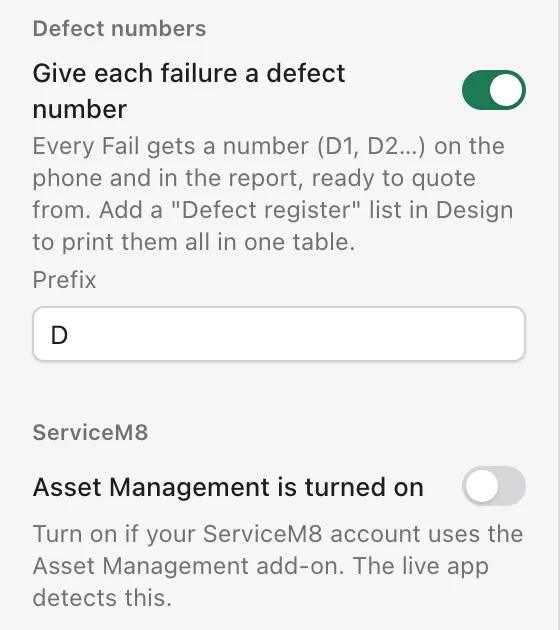
Every fail gets the next number in report order. The number shows on the phone straight away, and in the report. Add a Defect register block in the Design tab to list every defect in one table.
Section overall result
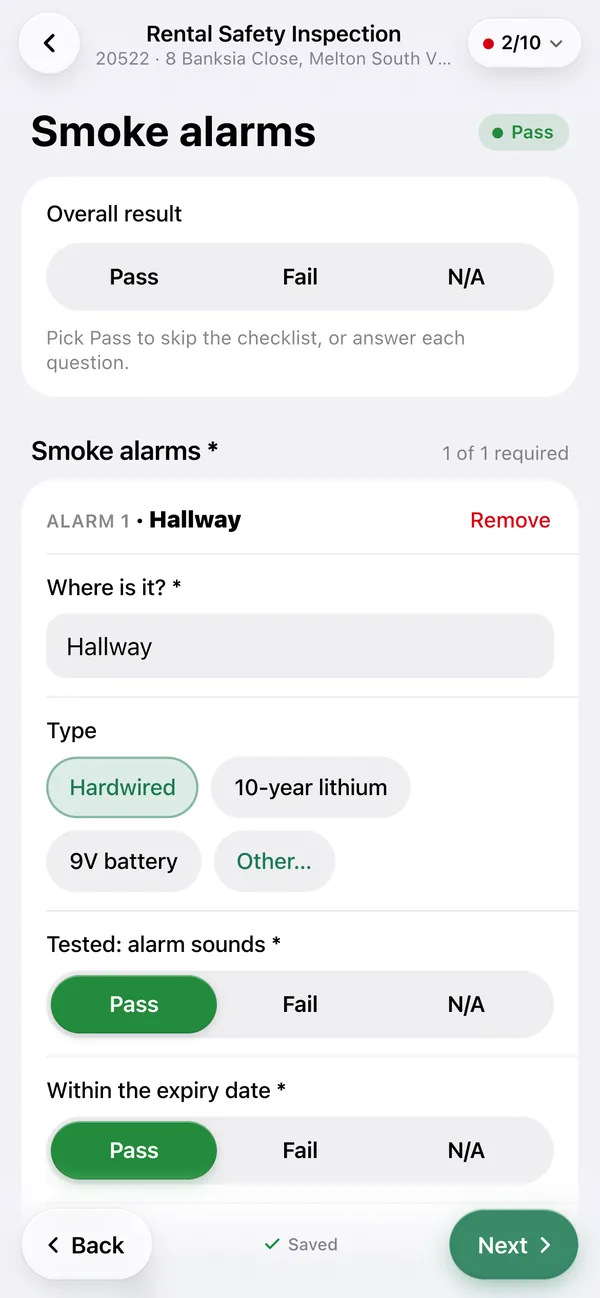
Turn on Overall result in a section's settings to put Pass / Fail / N/A at the top of the section. It saves time when everything is fine.
| Setting | Choices |
|---|---|
| When the tech picks Pass | Questions not required (hidden), or Mark every question Pass. |
| When the tech picks Fail | Answer every question, or Answer only failed items. |
| Offer N/A | Lets the tech mark the whole section not applicable. |
The report's overall result
- A section fails if any of its checks fail.
- The report's overall result is Fail if any section fails, and Pass when everything is Pass or N/A.
- Skipped sections count as N/A.
- Use the Overall result banner and Results by section blocks to show this on the report.
Writing up the fix
Add a Rectification / advice question so the tech can write what needs fixing. You can fill it in automatically when a check fails with an answer rule (see Answer rules). The defect register shows each defect with its rectification.