 Formbench
A tour of the form builder
The five tabs of the builder, the forms menu, versions, undo and how your work is saved.
Open the builder from the ServiceM8 Add-ons menu. Along the top you'll find the form's name, the forms menu, the version button and five tabs.
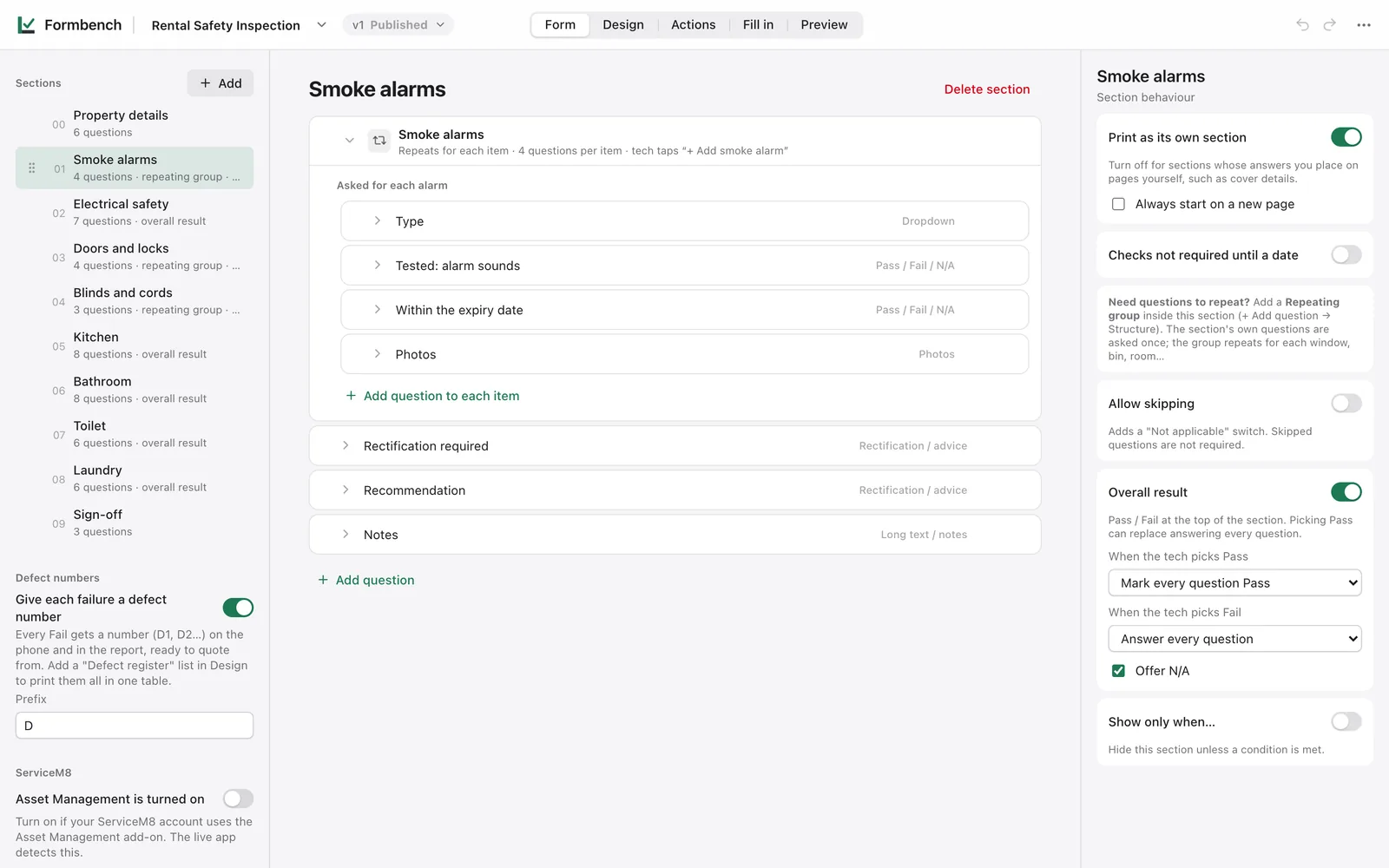
The five tabs
| Tab | What it's for |
|---|---|
| Form | Sections and questions: what the tech is asked. |
| Design | Pages and layout: what the PDF report looks like. |
| Actions | What should happen in ServiceM8 when the form is completed, previewed with sample answers. |
| Fill in | Try the form as the tech, on a phone, next to a live preview of the report. |
| Preview | Every page of the report, filled in with the sample answers. |
The top bar
- Form name: click the name to rename the form.
- Forms menu (the arrow next to the name): switch forms, start a new one, import or export.
- Version button: shows the live version and whether you have unpublished changes.
- Undo and redo: on the right. ⌘Z undoes and ⇧⌘Z redoes (Ctrl+Z and Ctrl+Y on Windows).
Saving
There's no save button. Every change is saved as you go. Techs only see your changes once you publish them, so you can work on a form without affecting jobs in progress.
Sample answers
The Fill in and Preview tabs use sample answers, so you can see a realistic report while you design. The chip at the top right shows the overall result of the sample, for example Sample: Fail.
The Actions tab
Actions are what Formbench does in ServiceM8 the moment a tech completes the form. The preview on the right shows exactly what would be created from the sample answers.
| Action | What happens in ServiceM8 |
|---|---|
| Create a follow-up job | A new Quote or Work Order job in the category you name, with the client, job address, contacts, billing, property manager and badges copied as you choose. The job description lists the defects in the layout you pick. It can also get a checklist, the report PDF and defect photos, quote line items from your ServiceM8 price list, a task for the office, and a note on both jobs linking them. |
| Update this job | Attach the PDF, add a job diary note, add a badge when defects are found, and mark the job Completed. |
| Email the report | Sends the PDF from ServiceM8 to the job contact, billing contact or property manager. The email shows in the job diary. |
- When to create it: when any defect is found, when there's a rectification item, always, or Ask the tech, who then picks Create quote or Not needed on the finish screen.
- Quote line items use the item numbers in your ServiceM8 price list (Materials & Services). One item for everything, an item per question, or the tech picks the fix on site: when a question fails, the tech ticks the fixes and each fix adds its items. A defect with no matching item is added as an unpriced line for the office to price.
- Job categories, queues, badges and staff are matched by name. Pick them from the suggestions; a name ServiceM8 doesn't have is shown with a warning and left out.
- Completing a reopened report again doesn't make a second follow-up job, unless you set Make a new follow-up job for each revision.