 Formbench
Adding sections and questions
Build the form a section at a time, add questions from the palette, and reorder everything by dragging.
A form is a list of sections (for example Smoke alarms, Kitchen, Sign-off). Each section holds questions. On the phone, the tech sees one section at a time.
Add a section
- Open the Form tab.
- In the Sections list on the left, click + Add. A new section appears with one Pass / Fail question.
- Click the section title in the middle panel and type a name.
- Drag sections in the list to change their order.
Each row in the Sections list shows how many questions it has, and whether it has a repeating group, can be skipped or has an overall result.
Add a question
- Pick the section in the list.
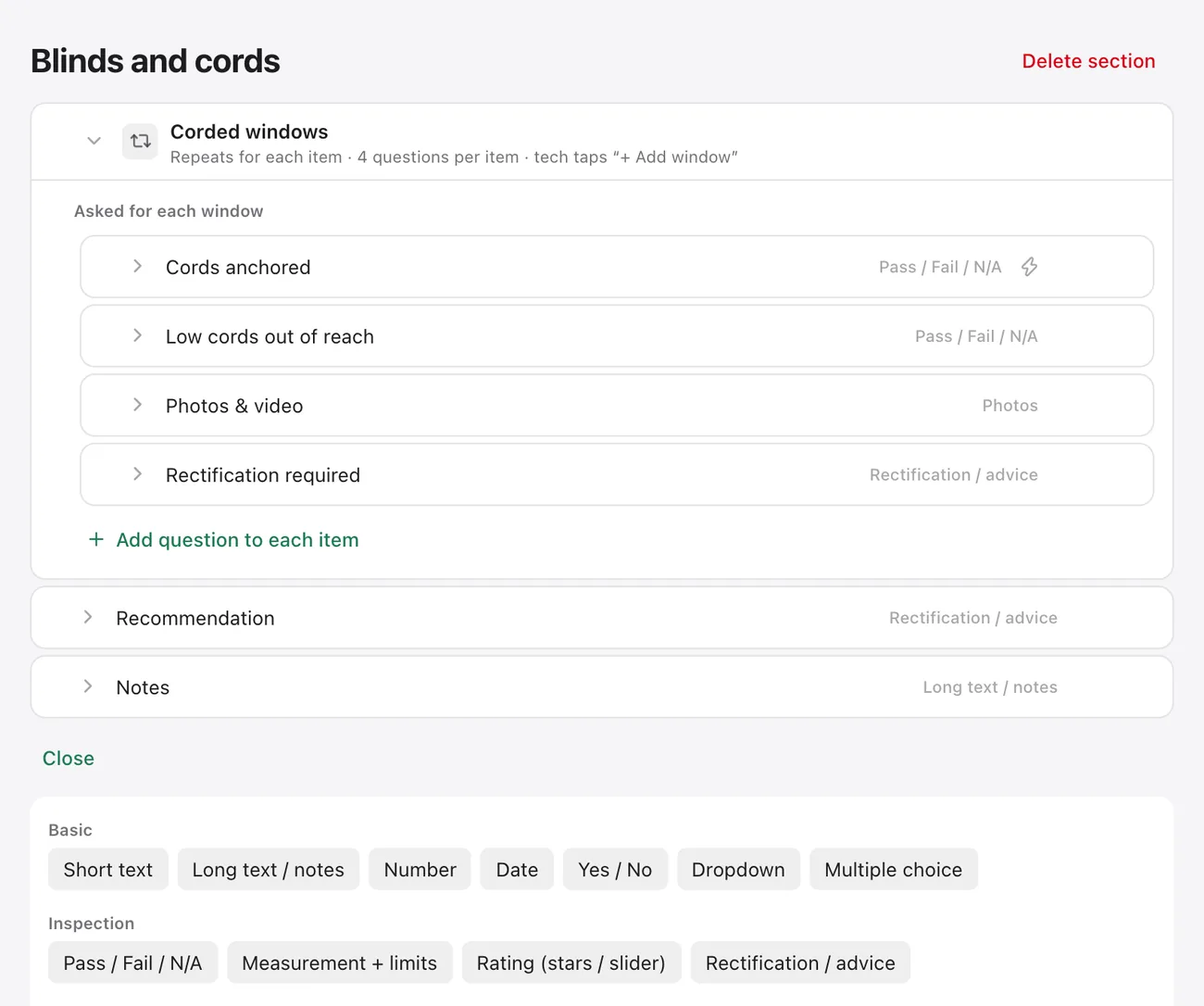
- Click + Add question under the questions. The palette opens, grouped into Basic, Inspection, Media, Structure and Other.
- Click a question type. The new question appears at the end of the section.
- Type the question's wording straight into the row, then click the arrow or the sliders icon to open its settings.
Change, move or delete a question
- Click the arrow or the sliders icon on a question to open its settings. Use Type to change it to another type.
- Drag a question by its grip (the dotted handle) to move it.
- Click the × on the question to delete it.
- To delete a whole section, open it and click Delete section.
More in Building forms
A tour of the form builderThe five tabs of the builder, the forms menu, versions, undo and how your work is saved.Question settings: required, help text and datesMake questions required, add help for the tech, hide them from the report, and phase in new checks from a date.Repeating groups: rooms, doors and alarmsAsk the same questions for every room, door or smoke alarm, and let the tech add as many as the job needs.Pass, fail, N/A and defect numbersHow checks, section results, the overall result and automatic defect numbers work.