 Formbench
Publishing and versions
Your changes reach techs when you publish. Each version is kept, and completed reports stay on the version they were filled in on.
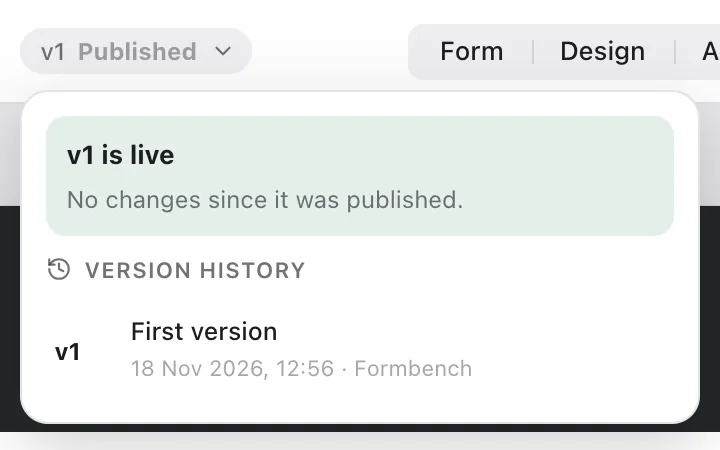
The version button sits next to the form name. It shows the live version (for example v3) and either Published or Unpublished changes.
Publish your changes
- Click the version button.
- Type a short note in What changed? (optional), for example "Added hot water checks".
- Click Publish. New reports use this version from now on.
Version history
- Each version is listed with its note, the date and who published it.
- Click Restore to load an older version as unpublished changes. You can then publish it again.
- Formbench keeps your 20 most recent versions.
What happens to reports already started
- A completed report keeps printing with the version it was filled in on, even after you publish a new one.
- A new report uses the latest published version.
- If a form has unpublished changes when its first report is completed, Formbench publishes them first, with the note "Published when a report was completed".
More in Building forms
A tour of the form builderThe five tabs of the builder, the forms menu, versions, undo and how your work is saved.Adding sections and questionsBuild the form a section at a time, add questions from the palette, and reorder everything by dragging.Question settings: required, help text and datesMake questions required, add help for the tech, hide them from the report, and phase in new checks from a date.Repeating groups: rooms, doors and alarmsAsk the same questions for every room, door or smoke alarm, and let the tech add as many as the job needs.