 Formbench
The report designer
Design the PDF in the Design tab with a live preview built from sample answers.
On this page
The Design tab shows the real report, filled in with the sample answers. What you see is the PDF your clients get.
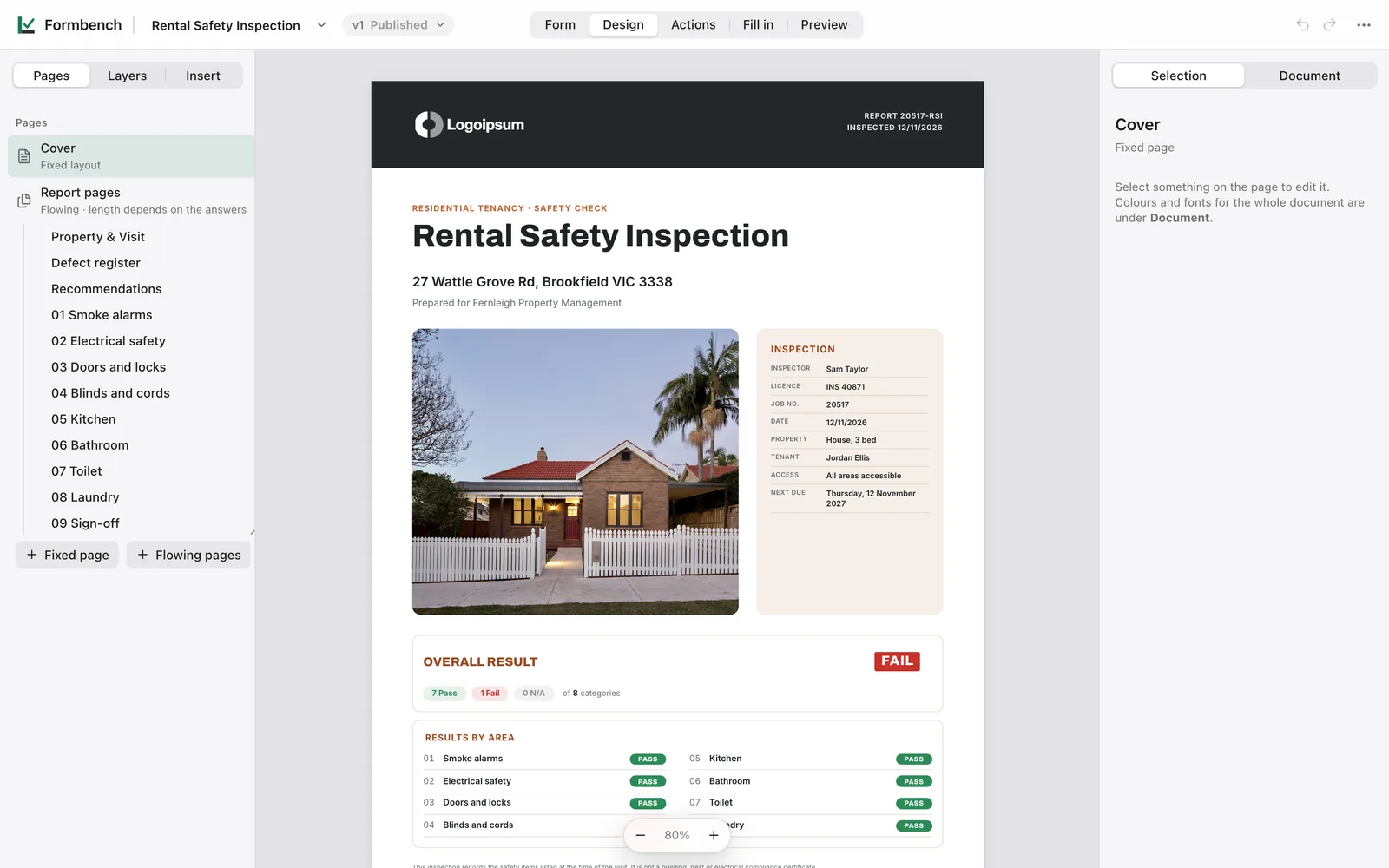
The left panel
| Tab | What it's for |
|---|---|
| Pages | The report's pages. Fixed pages (like the cover) and flowing report pages, with their sections and blocks. Drag to reorder. |
| Layers | Everything on the current page, front-most first. Drag to change the order, or use the arrows. |
| Insert | Report blocks and page elements to add. Type in Search to insert… to find one. |
The right panel
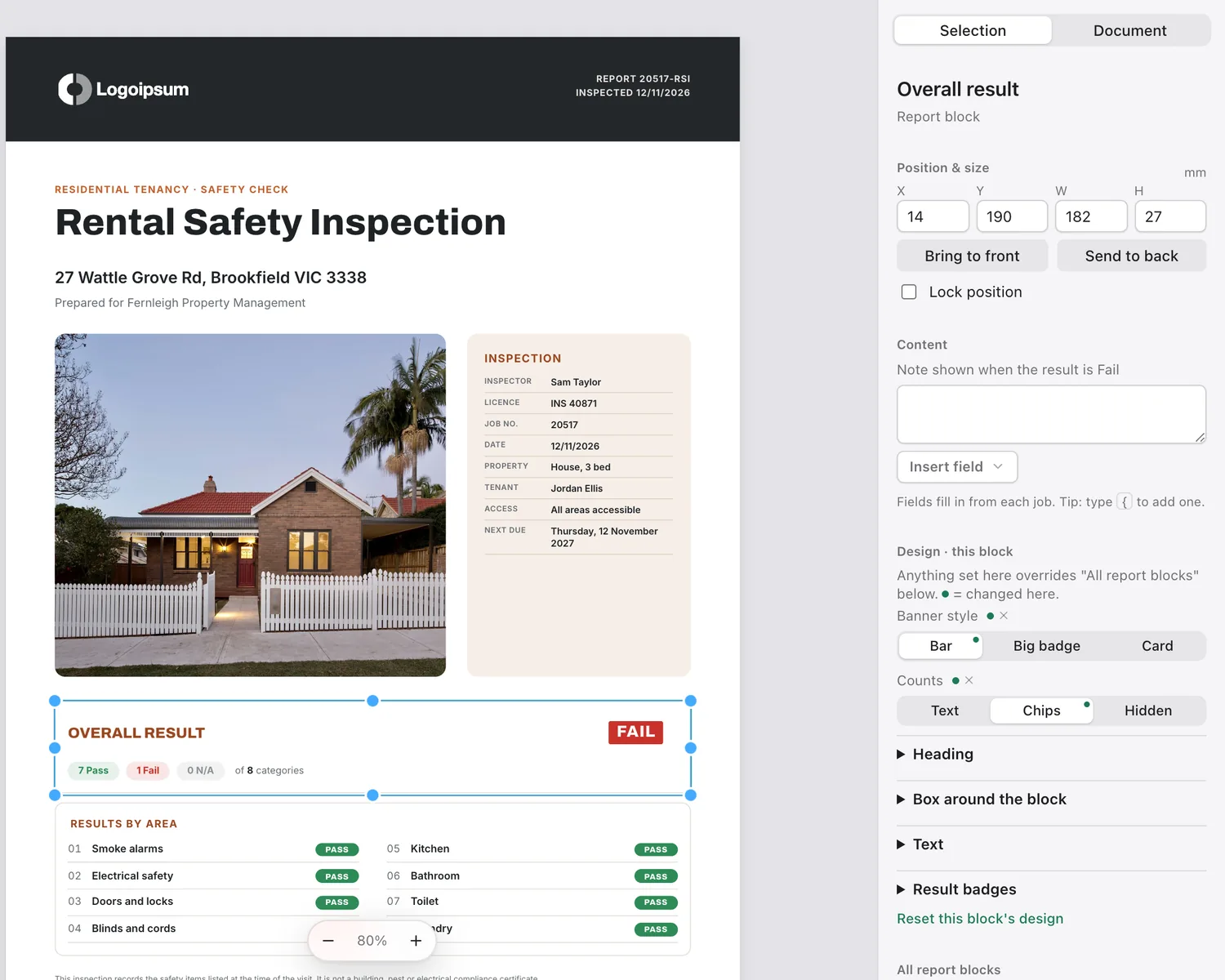
Selection shows the settings for whatever you clicked. Document holds settings for the whole report: the PDF file name, colours and fonts.
Working on the page
- Click anything to select it. Drag to move it, or use the handles to resize. It snaps to the page edges, the centre and other elements.
- Shift-click or drag a box to select several things, then use Align or Space evenly.
- Arrow keys nudge by 0.5 mm. Hold Shift to nudge by 5 mm.
- ⌘C, ⌘V and ⌘D copy, paste and duplicate. Delete removes. Esc clears the selection.
- Right-click for more options, such as Bring to front, Lock position or Hide from report.
- Use the zoom pill at the bottom to zoom in and out. Click the percentage to go back to 100%.
More in Designing the report
Cover pages and flowing report pagesLay out a fixed cover to the millimetre, and let report pages flow to fit however many rooms and photos the job has.Report blocks and page elementsEverything you can put on a report page, and how to style the printed form sections.Colours, fonts, your logo and the PDF file nameMake the report look like your business, and name the PDF the way you want.Job details and fields from ServiceM8Pull the job address, client, staff member, your company details and answers into the report.