 Formbench
Opening a job from ServiceM8
Tap the Formbench button on the job card. The form opens straight away in your phone or tablet's browser.
On this page
With the Formbench app (once it's in the App Store)
- Open the job in the ServiceM8 app.
- Tap the Formbench button on the job card.
- A page opens that says Open this job in Formbench. Tap anywhere on it, or tap Open in the app.
- The Formbench app opens on that job and you're signed in.
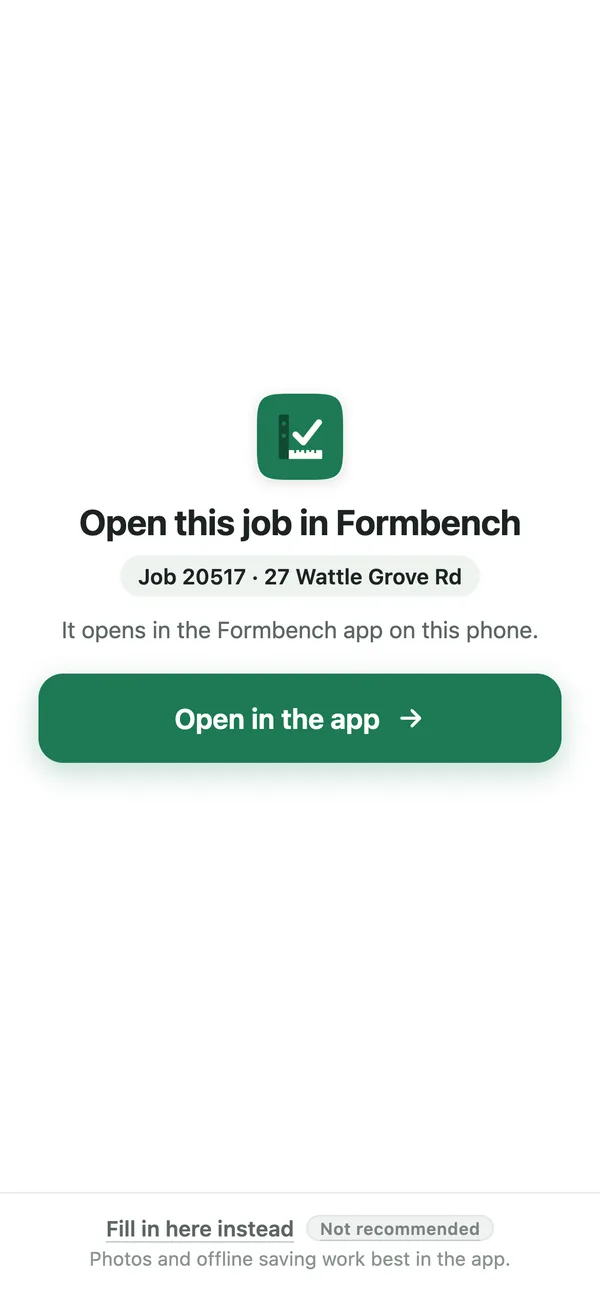
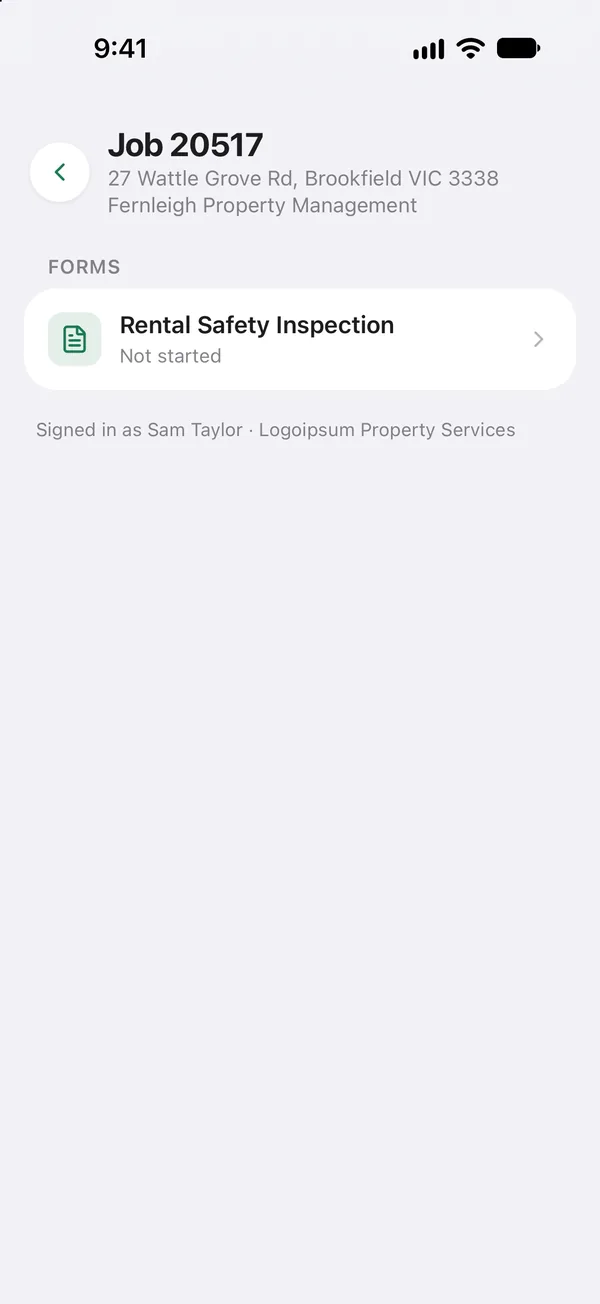
After the tap, the page changes to Opened in the Formbench app. That button only works once. To open the job again, close the window and tap Formbench on the job again.
Fill in here instead
At the bottom of the page there's Fill in here instead. It opens the form in the browser. It works, but it's not recommended: photos and offline saving work best in the app.
On a computer
In ServiceM8 on a computer, the Formbench button opens the job straight away in a window. See Attaching the PDF from the job card.
The job's forms
The job page lists the forms you can fill in, with their status:
- Not started
- In progress, with who last worked on it and when
- Completed, with the revision and PDF on the job once it's attached
Tap a form to start it or carry on. Pull down to refresh.
More in On the job (app)
The jobs list and searchThe app lists your jobs from 3 days ago to 10 days ahead. Search finds any other job by number, address or client.Filling in a form on siteMove through the form a section at a time, see what's left to do, and fix anything that's missing.Completing a report, reopening and revisionsFinish the report to lock it and attach the PDF to the job. Reopen it later if something needs to change.App settingsYour account, help links, saving photos to the camera roll, clearing saved data and signing out.