 Formbench
Completing a report, reopening and revisions
Finish the report to lock it and attach the PDF to the job. Reopen it later if something needs to change.
Complete the report
- On the last section, tap Finish report.
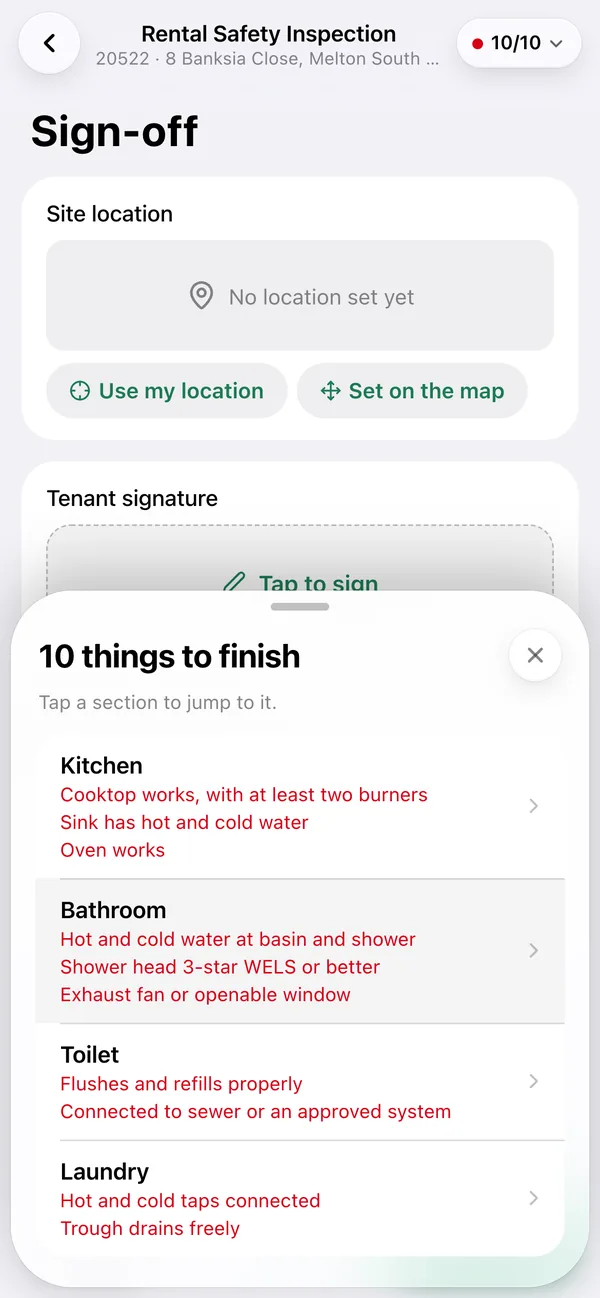
- If anything is missing, you'll see N things to finish, listed by section. Tap a section to jump to it and fix it.
- When everything is in, you'll see Ready to finish. If the form asks whether a follow-up quote (or work order) is needed, tap Create quote or Not needed. Then tap Complete report.
- Formbench builds the PDF and attaches it to the job. You'll see PDF attached to the job with the file name.
- Below it is a list of what else the form did in ServiceM8, for example Follow-up quote #1234 created, Report emailed to the billing contact or Job marked Completed. Tap Open in ServiceM8 to see the new job.
Completing locks the report on the form version it was filled in on. What else happens is set by whoever built the form, in its Actions tab: a diary note, a follow-up job, an email, a badge or the job status.
If a question fails and the form lets you choose how it will be fixed, tick the fixes under How will it be fixed?. Each fix adds its items to the follow-up quote.
Reopen a completed report
- Open the completed form. Its card shows Completed · Rev 1 and when it was locked.
- Tap Reopen to edit.
- Type why it needs to change. The reason is saved in the report history.
- Make your changes, then tap Complete as Rev 2.
The new PDF replaces the old one on the job: the earlier PDF is archived in ServiceM8, so only the latest is active. History lists every completion, reopen and edit.
Completing again doesn't make another follow-up job: you'll see Follow-up quote #1234 already created (Rev 1), unless the form is set to make one for each revision. The diary note and the email (if the form sends one) go out again with the new revision's PDF.