 Formbench
Attaching the PDF from the job card
On a computer, open the job from ServiceM8 to attach the PDF again, or attach a draft PDF before the report is finished.
The Attach PDF to job button is only on the job card in ServiceM8 on a computer. On a phone, the PDF attaches when the report is completed.
Attach the PDF again
- Open the job in ServiceM8 on a computer and click the Formbench button.
- Open the form.
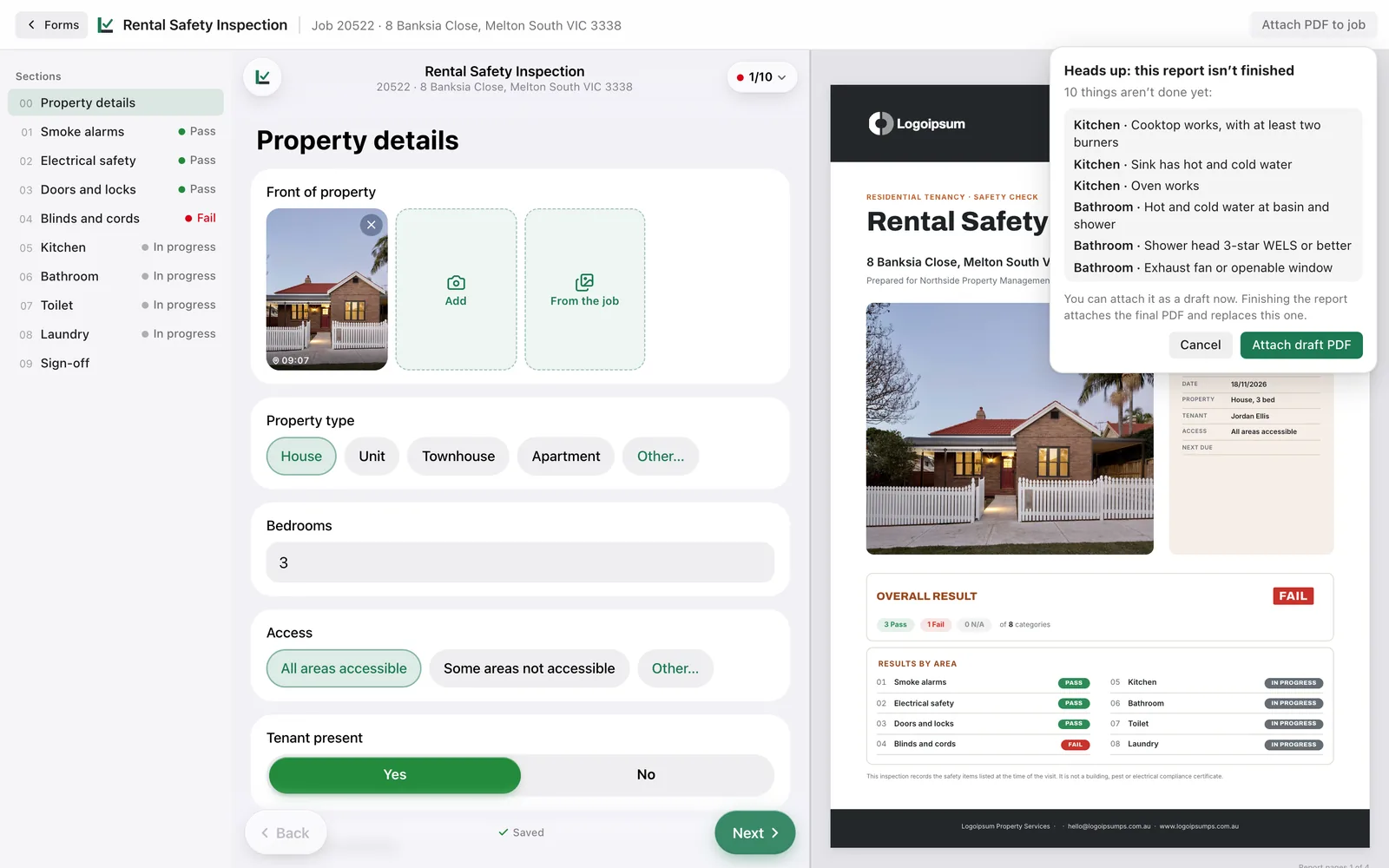
- Click Attach PDF to job at the top right.
For a completed report, this attaches a fresh copy and replaces the earlier one.
Attach a draft PDF
If the report isn't finished, Formbench warns you: Heads up: this report isn't finished, and lists what's not done. Click Attach draft PDF to attach it anyway. The file name ends in "(draft)". Finishing the report later attaches the final PDF and replaces the draft.