 Formbench
Colours, fonts, your logo and the PDF file name
Make the report look like your business, and name the PDF the way you want.
On this page
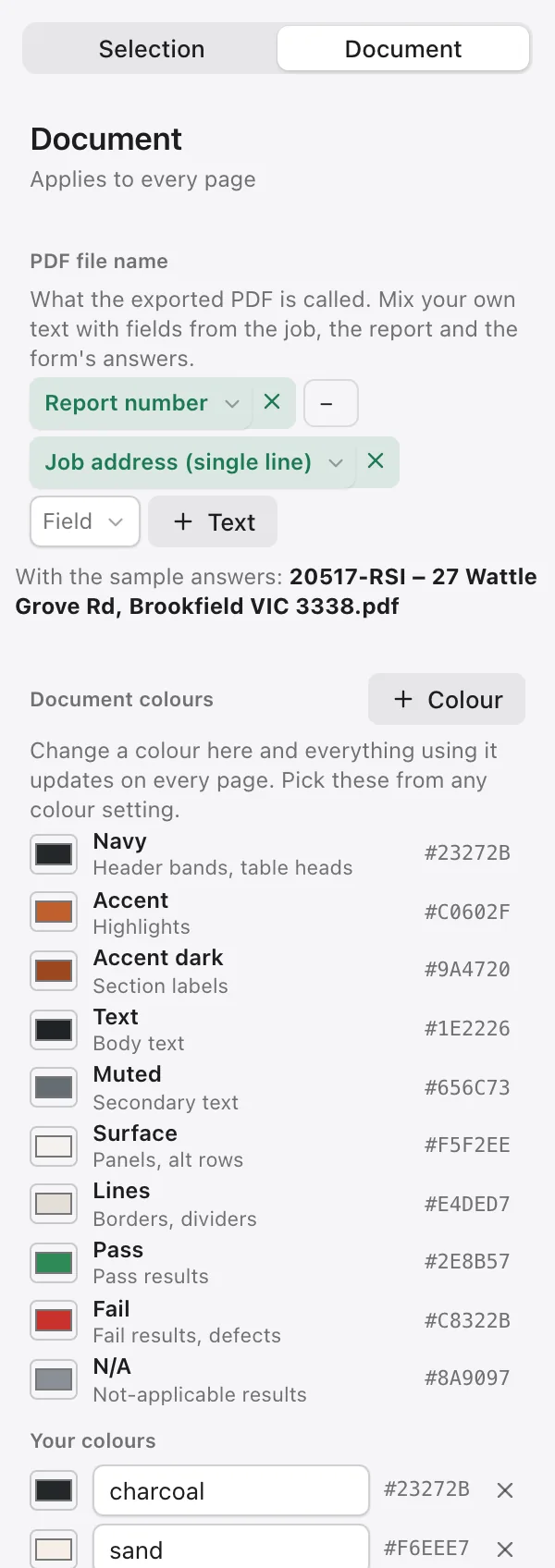
Colours
- In the Design tab, click Document on the right.
- Under Document colours, click a colour to change it. The whole report updates.
- Click + Colour to add your own named colours. They appear in every colour picker.
The colours are Navy, Accent, Accent dark, Text, Muted, Surface, Lines, Pass, Fail and N/A.
Fonts
Choose a heading font and a body font from Archivo, Inter, Barlow, Barlow Condensed, Roboto, Open Sans, Montserrat, Lato, Source Serif 4 and IBM Plex Sans.
Your logo
- Go to the page you want the logo on (the cover, or the header of the flowing pages).
- In the Insert tab, add an Image.
- Set Source to Uploaded image and drop in your logo file.
- Drag it into place and resize it.
The PDF file name
Under PDF file name, build the name from text and job fields. The default is the report number and the job address, for example 20517 – 27 Wattle Grove Rd, Brookfield VIC 3338.pdf. Click Reset to report number – address to go back to it.
More in Designing the report
The report designerDesign the PDF in the Design tab with a live preview built from sample answers.Cover pages and flowing report pagesLay out a fixed cover to the millimetre, and let report pages flow to fit however many rooms and photos the job has.Report blocks and page elementsEverything you can put on a report page, and how to style the printed form sections.Job details and fields from ServiceM8Pull the job address, client, staff member, your company details and answers into the report.