 Formbench
Taking photos
Take several photos in a row, zoom like the Camera app, and every photo is stamped with the time and place.
On this page
In the app
- Tap the Add tile on a Photos question. The camera opens.
- Pick a zoom stop (0.5×, 1×, 2×, plus 3× or 5× on phones with a telephoto lens) or pinch to zoom.
- Tap the shutter. Keep tapping to take several photos in a row. Each one appears in the strip at the bottom.
- Tap the library button to choose photos you already have.
- Tap Done when you're finished.
The top of the camera shows how many you've taken and how many more the question allows. Turn the flash on and off at the top right.
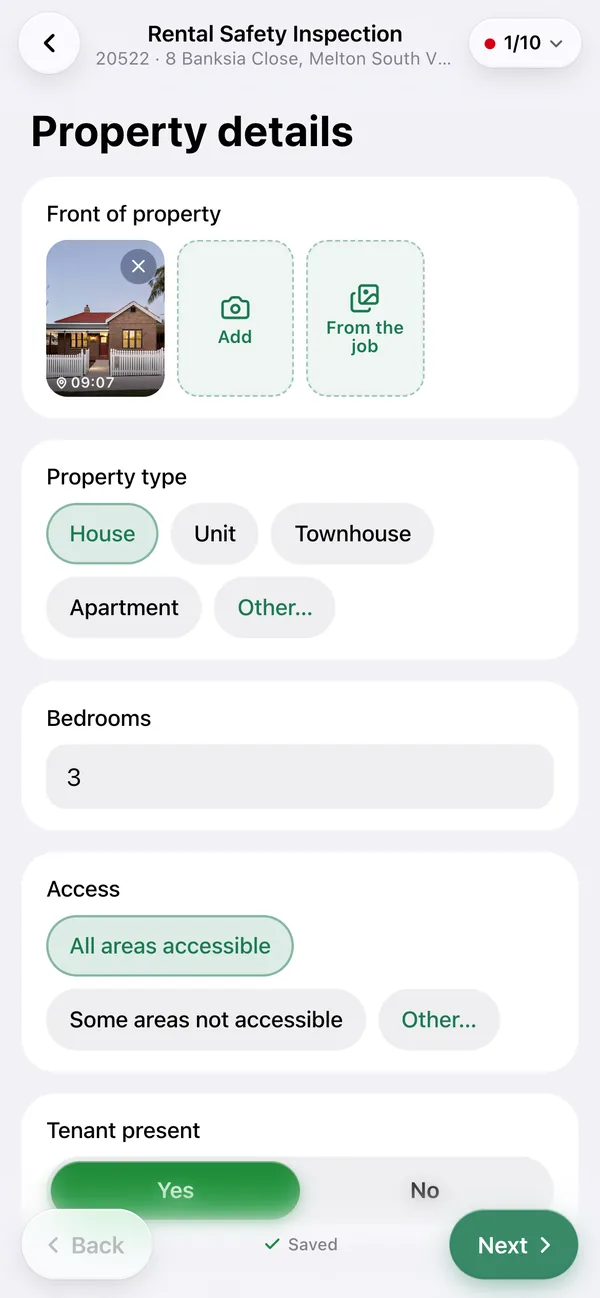
Photos go to the job straight away
Each photo uploads to the ServiceM8 job as soon as it's taken, in the background. They're named with the job number, section and time, for example 20517 Blinds and cords photo 2026-11-12 09.22.
Time and GPS stamp
- Every photo records the time it was taken and, if location is allowed, where.
- Photos picked from the library use their own time and location.
- The report can show the time and place under or on each photo, with a link to a map. See Map, photo and 3D links in reports.
Camera roll
Photos you take are also saved to your Photos library. Turn this off in Settings with Save photos to camera roll.
In a browser
In a browser, Add opens your phone's camera or photo library. The browser also has From the job, which picks photos already on the ServiceM8 job without uploading them again.
Video
If the question allows video, there's a Video tile as well. Videos upload to the job too. The report shows a still with the length, and links to a video page.