 Formbench
Signing in to the app
Sign in with your ServiceM8 email. A code comes to your ServiceM8 app. No new password.
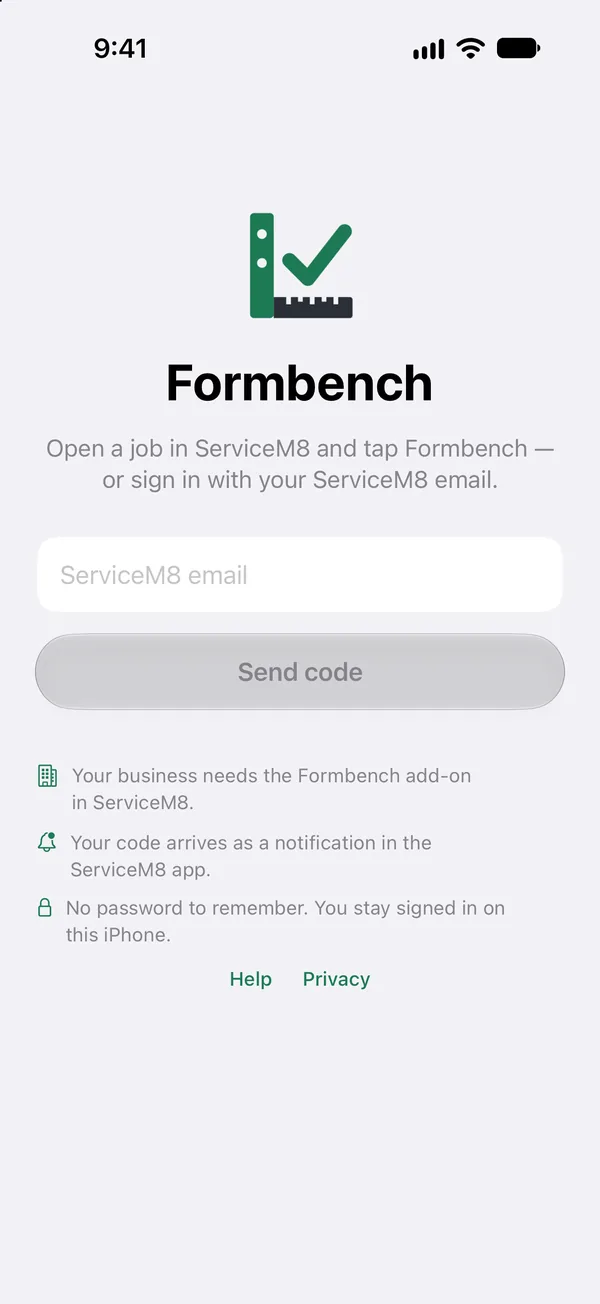
Sign in with a code
- Open the Formbench app.
- Type the email you use for ServiceM8 (the one on your ServiceM8 staff record) and tap Send code.
- A notification arrives in your ServiceM8 app: "Your Formbench code is 123456. It expires in 10 minutes."
- Type the 6-digit code. It signs you in as soon as all 6 digits are in.
You stay signed in on that iPhone or iPad. There's no password to remember.
Or open a job from ServiceM8
Tapping the Formbench button on a job also signs you in to the app. See Opening a job from ServiceM8.
Good to know
- Your business needs the Formbench add-on in ServiceM8 first.
- Codes expire after 10 minutes. After 5 wrong tries, ask for a new one with Resend code.
- Wrong email? Tap Use a different email.