 Formbench
3D room scans and panoramas
Capture a room in 3D with LiDAR, or take a guided 8-photo panorama that the phone stitches into a 360° view.
Both of these question types are taken in the Formbench iPhone app. In a browser, the form says to open it in the app instead.
3D room scan (LiDAR)
Needs an iPhone or iPad with the LiDAR scanner (iPhone Pro models have it).
- Tap Scan the room.
- Walk slowly around the room, pointing at the walls, doors and windows.
- Tap Done when the outline is complete.
- Tap Use this scan, or Scan again to start over.
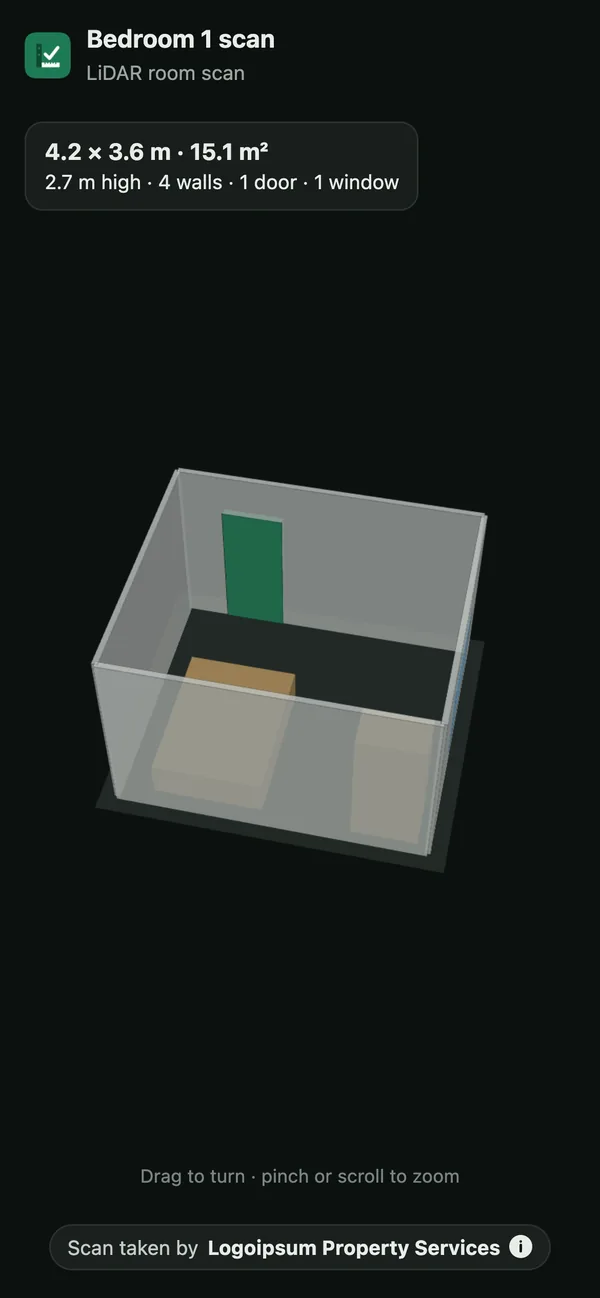
Formbench saves a 3D model and a floor plan with the length, width, height and floor area. The report shows the plan and measurements, with a link to a 3D viewer in the browser.
Panorama (photo ring)
Works on any iPhone or iPad. The app guides you through 8 photos as you turn on the spot.
- Tap Take the panorama.
- Stand in the middle of the room and take the first photo.
- Turn on the spot. The app tells you which way and how far to turn, for example Turn right 30°.
- When it says Hold steady and take the photo and the shutter ring turns green, take the next photo.
- Carry on until all 8 are done, or tap Done after at least 3.
The phone stitches the photos into one panorama while it shows Stitching the panorama…. A full turn becomes a seamless 360° view. The app uses the widest lens your phone has.
More in Question types
All question typesEvery question type Formbench has, what the tech sees and what prints on the report.Signatures, site location and ratingsHow the Signature, Site location and Rating questions work on the phone and in the report.ServiceM8 assets and QR label scanningLink a section or each item in a repeating group to a ServiceM8 asset. On site the tech scans the asset's QR label or chooses it from the site's assets.