 Formbench
Offline drafts: start without a job
Start a form with no job and no signal, then link it to the ServiceM8 job later.
Sometimes you're on site before the job is in ServiceM8, or you can't load it. Start an offline draft and link it to the job once you have signal.
Start a draft
- In the app, tap the pencil at the top of the jobs list (New offline draft). You can also tap Start an offline draft when the app can't connect.
- Type the Site address and tap Start.
- Pick a form and fill it in as normal. It saves on the phone.
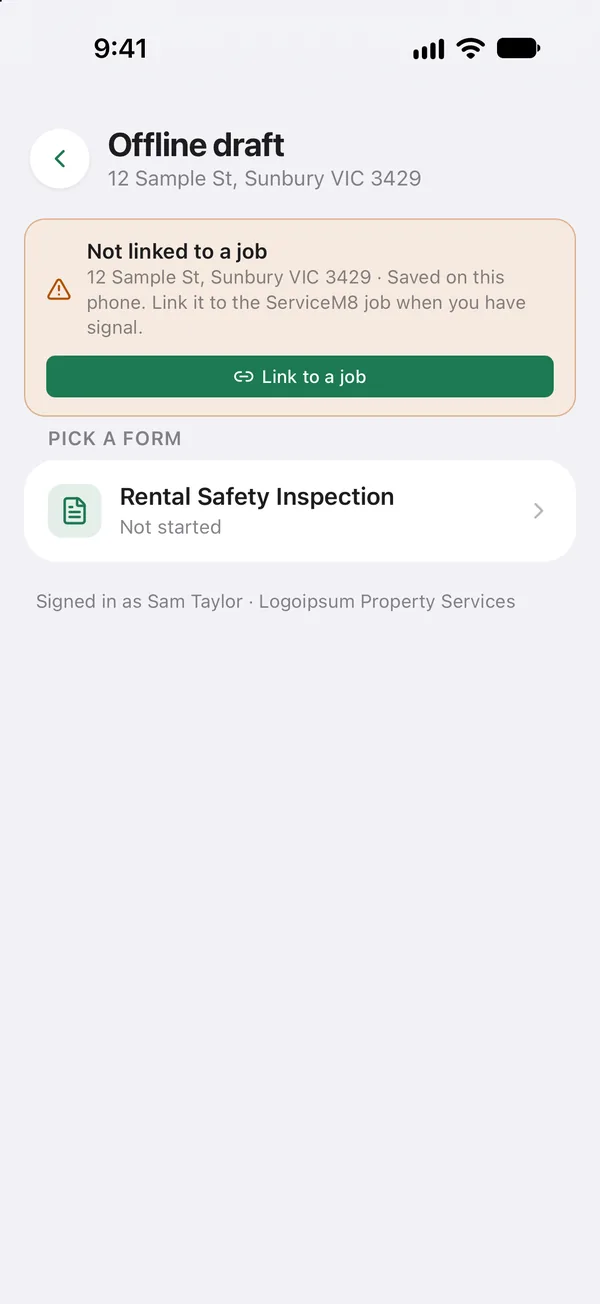
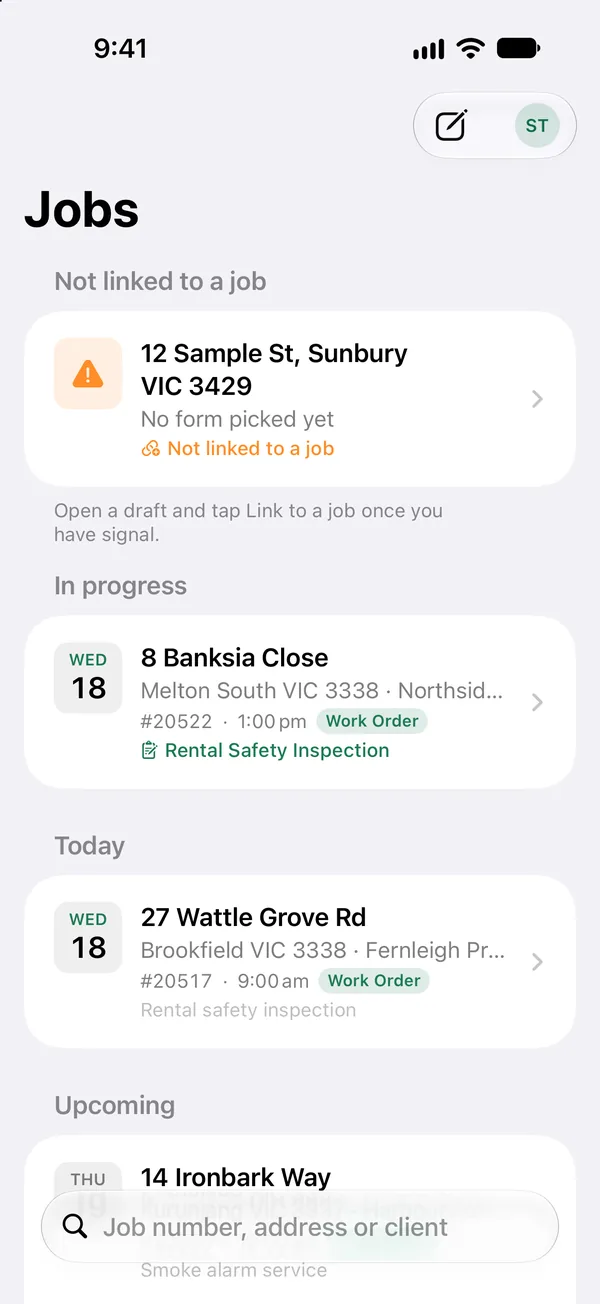
Drafts show at the top of the jobs list under Not linked to a job. Their photos stay on the phone until the draft is linked.
Link the draft to the job
- Once you have signal, open the draft.
- Tap Link to a job.
- Search for the job by number, address or client, or pick from Your jobs around today.
- Confirm. The answers and photos move onto that job, the photos upload, and a note is added to the job diary.
- Now you can finish the report. The PDF attaches to that job.
Delete a draft
Swipe left on the draft in the jobs list and tap Delete. Its answers and photos on the phone can't be got back.